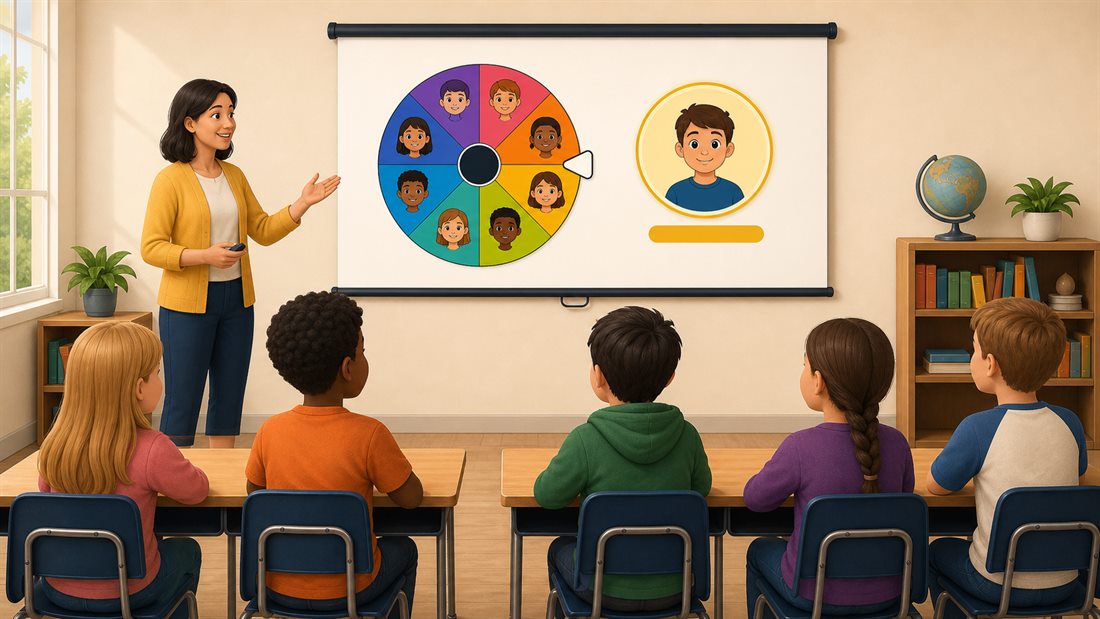
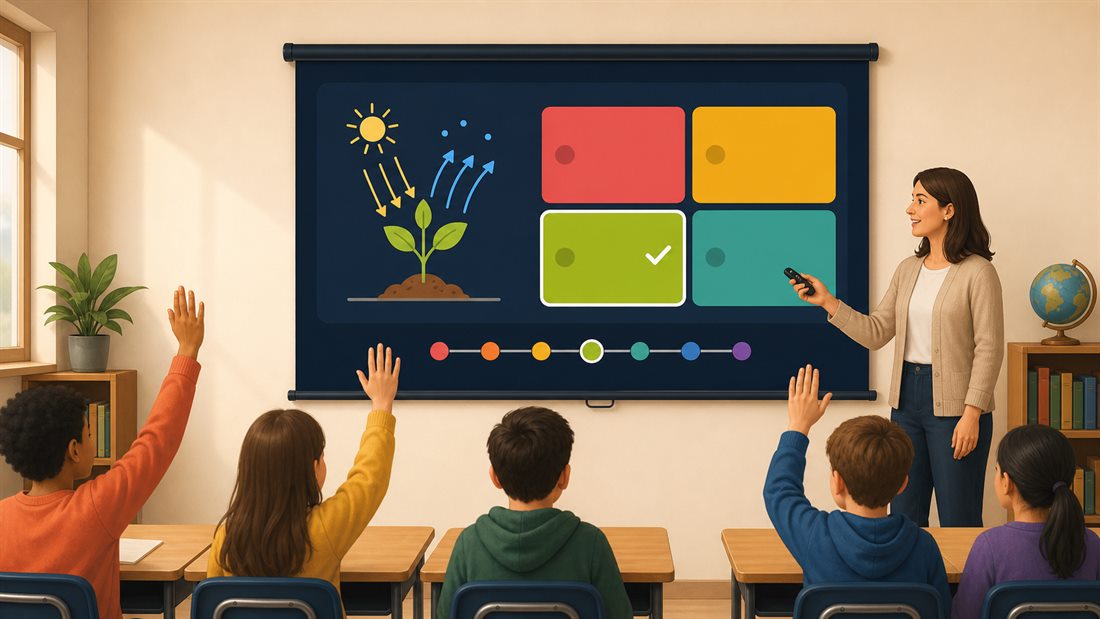
Start with a ready-to-use writing lesson, or prepare your class list for turn-taking and group work. The wheels are editable, so you can fit each activity to your students.
15 minutes · Individual writing, then pairs · Paper and a pencil, or a writing device
Everyone begins with the same event. By the end, each writer has a short opening with a character, a problem and a reason to read on.
Before you start: Open the writing-prompt wheel and read its 16 starters. Remove or change anything that does not fit your class. No student names are needed. Display one shared prompt, or read it aloud if students cannot see the screen.
Run the activity
0-1 minute: Pick a starting point. Spin once and read the result. Say: “Keep this event in your story. You choose who it happens to, where they are and what happens next.”
1-3 minutes: Make three quick notes. Who is your character? What do they want? What gets in their way?
3-10 minutes: Write the opening. Start close to the event on the wheel. Leave spelling and polishing until later; a few connected sentences are enough to begin.
10-13 minutes: Compare in pairs. Each writer may read a few lines, show a drawing or pass. Ask the listener to name one detail that made them curious. Notice how the same prompt led to different choices.
13-15 minutes: Improve one sentence. Add a specific action or detail. Underline the changed sentence, then save the opening to continue another day.
One possible opening
For the preset “The library lends memories”:
Mina borrowed a memory of the sea. When she closed her eyes, she heard waves and someone calling her name. She had never been to the coast. The librarian quietly turned the sign to Closed.
The example gives Mina a discovery and leaves a question unanswered. Students can take the same prompt in a completely different direction.
Adjust it for your group
Offer a way in: Draw three panels, tell the opening to a partner, or begin with “My character wanted…” and “But then…”
Add a challenge: Tell the event from an unexpected point of view, such as the library book or the person who donated the memory.
Keep it for next time: Bookmark this lesson link. Use My Wheels if you want to save an edited prompt list in the same browser. The lesson uses prompts only; prepare student rosters separately for Rounds or Teams below.
Open the wheel of names, replace the examples and save your class explicitly in My Wheels. Put each student on a separate line. First names with initials usually provide enough detail for a classroom display; distinguish students who share a name.
Try a spin on the actual board or projector. Check that you can read the winner box, reach the controls and turn sounds down or off. Fullscreen can help on a small display, but board browsers and school device policies vary.
Check attendance first
A checked box means absent. Numbered rows help distinguish students with matching names.
Keep the original roster
Rounds changes who can be picked for this activity. End the round to use every original entry again.
Choose what to remember
Saved round data can be read by the next person using the browser. Keep only what your classroom needs.
Five activities from the same class list
1
Choose a reader. Use the random name picker for one volunteer from a list of willing readers. Check the list before displaying it.
2
Give everyone a turn. Open Rounds, check absent students and start a round for short answers. The wheel calls each included present student once, through the last remaining person. End round returns the original entries.
Participation1 remaining · 3 called
AvaCalled
LiamCalled
NoorCalled
ChloeNot called
3
Split the class for discussion. On your current wheel, choose Teams below the Entries box. Select Use current wheel entries if needed, then check absences again in Teams. Its attendance is separate from Rounds. Choose a team count or maximum size and choose Generate teams. Every present roster row is assigned once, with group sizes differing by at most one; wheel weights, visibility and round progress do not control it.
Group 1AvaOmar
Group 2NoorLiam
Group 3ChloeMia
Group 4TheoSofia
4
Review a problem. Use the number wheel to choose an exercise, or the letter wheel for vocabulary practice. End an active student round before switching its wheel source.
5
Take a short break. Put a few two-minute activities on a separate saved wheel. Review every possible activity for the class and available space before letting a student spin.
StretchSketchDanceBreathe
Decide what to keep on the classroom device
Saving a roster in My Wheels does not save a round's progress. Remember this round in this browser is a separate opt-in that needs browser support and available storage. It keeps names, marked absences and call history locally. Anyone using that browser can access the saved session. Keep this tab open if a warning says saving is unavailable or failed.
A reload does not continue calling automatically. On the same page, load the matching roster from My Wheels and use the same settings, then open Rounds and choose Resume saved round. If the source no longer matches, discard the saved session and begin again.
Use End or discard when the remembered round is no longer needed. Stay on the page until the saved-round update finishes and read any warning. A failed removal may leave student data stored. Newer round data saved in another tab is preserved; a warning tells you it was not removed.
Typing a roster, running a local round and making teams do not upload that list. Winners are still listed, with their times, in that page's Results tab in this browser until you clear it, even after you end or discard a round. An enabled hosted Share or live-room action sends the data needed for that service. Downloaded files may be handled by device backups or synchronization. Follow your school's rules for names, shared computers and file transfers, and read the privacy policy.
Keep turn-taking manageable
Rounds takes its starting group from the enabled entries, visible limit and Show Duplicates setting. Matching names have separate numbered rows if both are included. If the duplicate rule hides a student, fix the list before starting. Existing Advanced weights still affect who is called next.
A checked attendance box means absent. Uncheck a late arrival to make an uncalled student available. Changing attendance does not erase a turn already taken. Undo last change corrects a mistake; Restart round begins another pass. Edits to the source or relevant settings stop the round, as do live-room and multiple-wheel contexts.
Ordinary Auto remove winner changes the list and keeps at least two entries. Rounds can reach zero without deleting names. Neither round progress nor the recent Results view confirms that a student actually attended or spoke.
Try a round with fictional names
Replace the Entries list with five lines: Alex, Alex, Blair, Casey and Drew. Keep Show Duplicates on (the default), then open Rounds: five rows appear, including Alex (#1) and Alex (#2). If a longer class list is missing rows, check Entries Visible. Check Drew to mark that row absent, leave Remember this round in this browser off for this practice, then select Start round. Spin four times, closing each winner announcement. The order varies, but the counts should end at 0 remaining, 4 called and 1 absent. End round makes the five original entries available again. For a real class, add initials or another distinction so the winner box tells matching names apart.
Show the result clearly
Read the winner box aloud rather than relying on small slice labels. Let students know whether the activity is a single draw or a full round, and check weights if you intend equal chances.
For Teams, 23 present students can make six groups of 4, 4, 4, 4, 4 and 3. This balances numbers, not ability or access needs. Review the groups, then copy, download CSV or print before reloading. Team results are temporary in the current tab.
For a separate setup, open the random team generator and replace its sample roster. That page does not carry over the class list from your current wheel.
A short routine for each lesson
1
Open the saved class and confirm the roster, duplicate rule, visible limit and weights.
2
Choose Rounds, check absent students and start. Spin when you are ready for each contribution.
3
End the round before switching activities. For group work, use Teams below the Entries box and check its attendance separately.
4
End or discard unneeded remembered rounds on shared devices, and clear Results if the next person should not see who was called. Wait for the update to finish; a removal warning may mean data remains or a newer saved copy in another tab was kept.
Prepare your next lesson's roster
Replace the sample names, save your class and check the Rounds attendance list before students start taking turns.